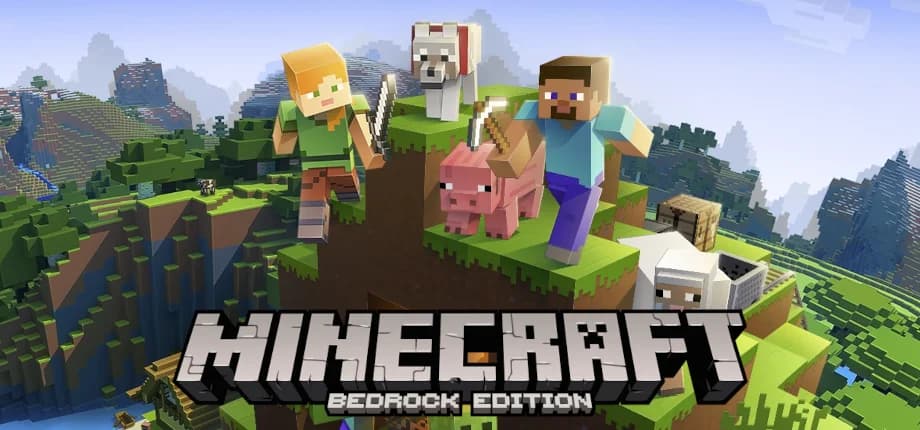
Minecraft Bedrock Edition dedicated server. Supports cross-play between Windows, mobile, and console players. Uses the official Mojang server software with automatic version management.
Here's what you need to run a Minecraft - Bedrock dedicated server.
Small private server, 1-5 players
Friends & family, 5-15 players
Large community server, 15-30 players
Start hosting from your own computer
Run a Minecraft - Bedrock server on your desktop, laptop, VPS, or dedicated machine — GameCP automates Docker setup, resource allocation, and Minecraft - Bedrock configuration instantly. Automatic port forwarding means your friends can connect without touching your router. Start local, scale to a VPS when you're ready.
Skip the manual installation, port forwarding, and configuration. Install on your own computer and start hosting instantly.
The full manual process to host a Minecraft - Bedrock dedicated server on a VPS. Or install GameCP on your own computer and skip all of this.
Set your server settings, then install Docker, and pull the Minecraft - Bedrock container image.
# Update system and install Docker
sudo apt update && sudo apt install -y docker.io
sudo systemctl enable --now docker

# Create game server directory
sudo mkdir -p /opt/gameserver

# Server configuration
export BEDROCK_VERSION="latest"

# Pull the container image
docker pull ghcr.io/ptero-eggs/yolks:debian
Minecraft - Bedrock uses a custom install script to download and configure the server files.
#!/bin/bash

apt update
apt install -y zip unzip wget curl jq

cd /opt/gameserver || { echo "Failed to change directory to /opt/gameserver"; exit 1; }

# Default version to latest if not set
BEDROCK_VERSION=${BEDROCK_VERSION:-latest}

# Filename to use for the downloaded file
DOWNLOAD_FILE="bedrock-server-installer.zip"

# Minecraft CDN Akamai blocks script user-agents
RANDVERSION=$(echo $((1 + $RANDOM % 4000)))


if [ "${BEDROCK_VERSION}" == "latest" ]; then
    echo "Finding latest Bedrock server version"
    DOWNLOAD_URL=$(curl --silent https://net-secondary.web.minecraft-services.net/api/v1.0/download/links | jq -r '.result.links[] | select(.downloadType == "serverBedrockLinux") | .downloadUrl')
    if [ -z "${DOWNLOAD_URL}" ]; then
        echo "Failed to retrieve the latest Bedrock server version. Please check your network connection or the Minecraft API."
        exit 1
    fi
else
    echo "Downloading ${BEDROCK_VERSION} Bedrock server"
    DOWNLOAD_URL=https://www.minecraft.net/bedrockdedicatedserver/bin-linux/bedrock-server-$BEDROCK_VERSION.zip
fi

echo "Download URL: $DOWNLOAD_URL"


echo -e "Backing up config files"
mkdir /tmp/config_backup
cp -v server.properties /tmp/config_backup/ 2>/dev/null
cp -v permissions.json /tmp/config_backup/ 2>/dev/null
cp -v allowlist.json /tmp/config_backup/ 2>/dev/null


echo -e "Downloading files from: $DOWNLOAD_URL"
curl -L -A "Mozilla/5.0 (Windows NT 10.0; Win64; x64) AppleWebKit/537.36 (KHTML, like Gecko) Chrome/90.0.$RANDVERSION.212 Safari/537.36" -H "Accept-Language: en" -o $DOWNLOAD_FILE $DOWNLOAD_URL

echo -e "Unpacking server files"
unzip -o $DOWNLOAD_FILE

echo -e "Cleaning up after installing"
rm $DOWNLOAD_FILE

echo -e "Restoring backup config files"
cp -rfv /tmp/config_backup/* /opt/gameserver/ 2>/dev/null || { echo "No files to restore"; }

chmod +x bedrock_server

echo -e "Install Completed"Minecraft - Bedrock requires 1 port to be open for game traffic and queries.
sudo ufw allow 19132/udp
Start the Minecraft - Bedrock server using the configuration from Step 1.
docker run -d \
  --name minecraft-bedrock-edition-server \
  -p 19132:19132/udp \
  -e BEDROCK_VERSION="latest" \
  -v /opt/gameserver:/opt/gameserver \
  -w /opt/gameserver \
  ghcr.io/ptero-eggs/yolks:debian \
  ./bedrock_server
GameCP automates every step above: Docker, port forwarding, startup, and config. Install on your own PC and deploy a Minecraft - Bedrock server in under 5 minutes.
Deploy with GameCPExplore step-by-step setup guides for other popular games supported by GameCP.
Install GameCP on your own computer and start hosting in minutes. Automatic port forwarding, zero config — your friends connect instantly.
No credit card required · Free tier available · Install local, scale later