

Updating a Node
GameCP periodically releases updates to the node agent with bug fixes, performance improvements, and new features. When an update is available, your node card will let you know — here's how to apply it.
How to Tell an Update is Available
On your Nodes page, look at the version badge on each node card. It normally shows the current version number in a gray badge (e.g. v1.5.53).
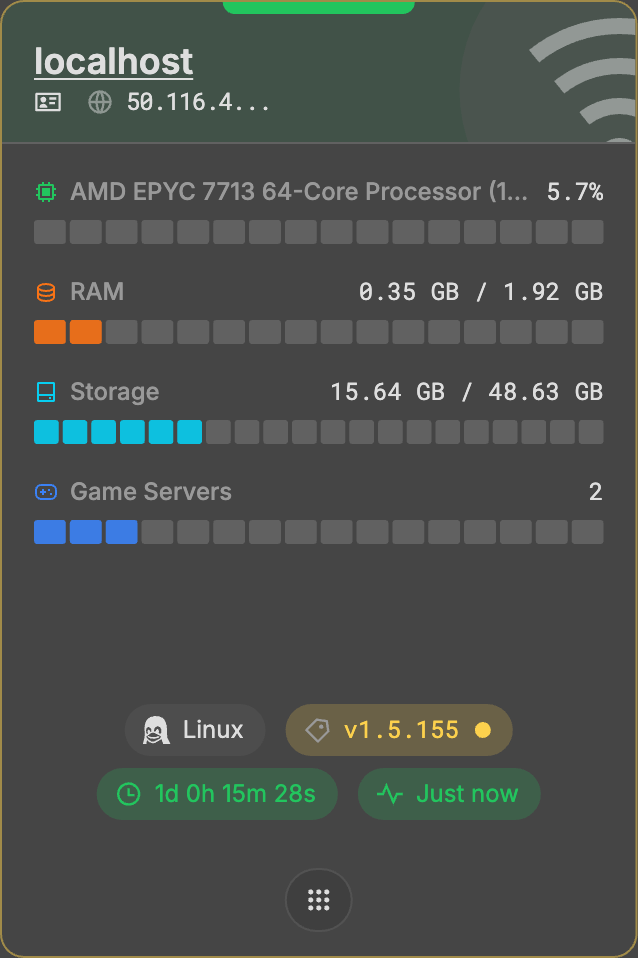
When a new version is available:
- The version badge turns yellow/amber
- A small pulsing dot appears next to the version number
- The node card gets a subtle amber border ring
- Hovering the badge shows "Click to update"

Note: There are no automatic updates. You control when each node gets updated.
Step 1: Click the Version Badge
Click the yellow version badge directly on the node card. This opens the node's action overlay with the update dialog ready to go.
Alternatively, you can:
- Click the action menu button (grid icon at the bottom of the card)
- Select Update Agent from the action list
Step 2: Review the Update
The update dialog will show you:
- Your current version
- The latest version available
- Confirmation that an update is ready
Step 3: Confirm the Update
Click the Update button to start the process. The node will:
- Download the latest agent binary
- Replace the current version
- Restart the node service automatically
During the update, the node card will show an "Updating" status with a progress indicator. The process typically takes 15–30 seconds.
After the Update
Once complete, the node will come back online automatically with the new version. The version badge will return to its normal gray color showing the updated version number.
Troubleshooting
Node stays offline after update
- Wait 60 seconds — the restart may take a moment
- SSH into the server and check the service:
systemctl status gamecp - If needed, restart manually:
systemctl restart gamecp
Update button is grayed out
- The node must be online to receive updates
- Make sure you have the nodes.update permission
Version badge isn't yellow but update exists
- The update check runs periodically. Refresh the page or wait a few minutes for the badge to update.