

Game Configuration: Environment Variables
This is Part 4 of the Game Configuration series. Environment variables are the primary way users configure their game servers — things like server name, max players, game mode, and map.
What Are Environment Variables?
Environment variables are key-value pairs that get injected into the game server's container (or process) at startup. They serve two purposes:
- Server configuration — settings like
SERVER_NAME,MAX_PLAYERS,GAME_MODE - Variable substitution — referenced in command lines, scripts, and config files using
${VARIABLE_NAME}syntax
When a user creates a game server, they see these variables as editable fields in their server settings. Changing a variable and restarting applies the new value.
Environment References
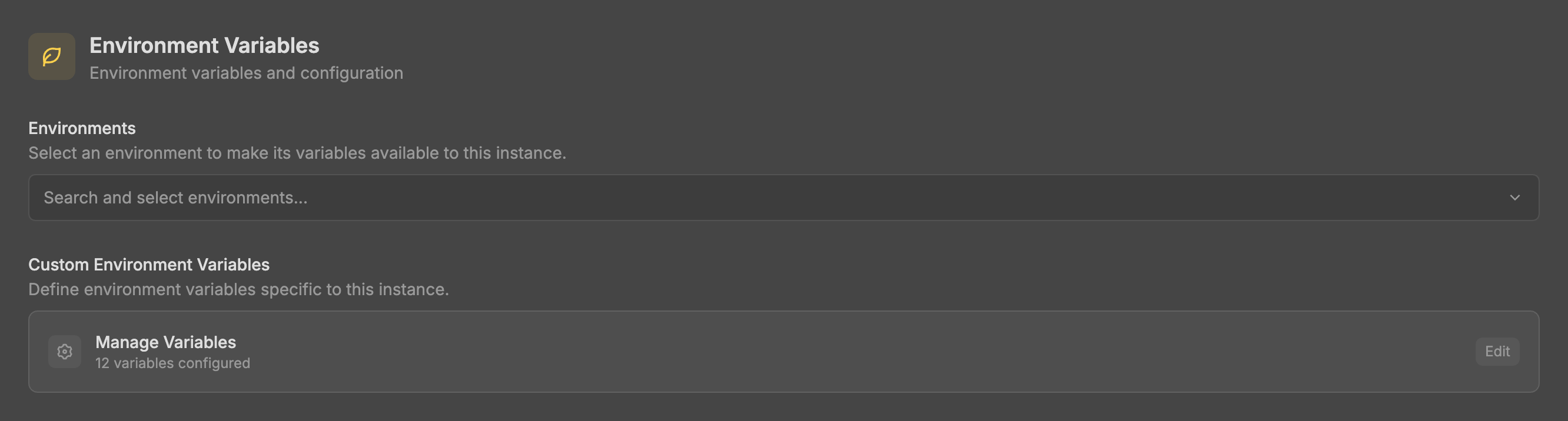
The Environments selector lets you attach shared environment collections to your game config. Environments are reusable groups of variables that can be shared across multiple game configs.
For example, you might create an "API Keys" environment containing common credentials, then attach it to several game configs.
Select one or more environments to make their variables available. Servers created from this config will inherit those variables automatically.
Custom Environment Variables
Click Manage Variables to open the full variable editor. This is where you define game-specific variables that users can configure.

Variable Properties
Each variable has:
| Property | Description |
|---|---|
| Key | The variable name (e.g., MAX_PLAYERS). Must be unique. |
| Default Value | The initial value for new servers |
| Label | A human-readable name shown to users (e.g., "Max Players") |
| Description | Help text explaining what the variable does |
| Type | The input type: text, number, select, toggle, or hidden |
| Required | Whether the variable must have a value |
| User Editable | Whether server owners can change this from their server settings |

Variable Types
| Type | Renders As | Best For |
|---|---|---|
| Text | Text input | Server name, passwords, custom strings |
| Number | Number input | Player count, port numbers, tick rates |
| Select | Dropdown | Game mode, difficulty, map selection |
| Toggle | Switch | Enable/disable features (PvP, whitelist, etc.) |
| Hidden | Not shown to users | Internal values, system paths, credentials |
Select Options
When using the Select type, you define a list of options with values and labels:
- Value — the actual value passed to the server (e.g.,
survival) - Label — what the user sees in the dropdown (e.g., "Survival Mode")
Variable Ordering
Variables appear in the order you arrange them in the editor. Drag to reorder. Put the most important variables (server name, player count, game mode) at the top since users see them first.
How Variables Are Used
Variables flow through the entire system:
- Command Lines —
${MAX_PLAYERS}in arguments gets replaced with the actual value - Config Files —
${MAX_PLAYERS}in config file templates gets substituted - Docker — injected as environment variables into the container
- Scripts — available as environment variables in lifecycle scripts
Example Flow
If you define MAX_PLAYERS with a default of 20:
- Command line argument:
-maxplayers ${MAX_PLAYERS}becomes-maxplayers 20 - Config file:
max_players=${MAX_PLAYERS}becomesmax_players=20 - In Docker: the container sees
MAX_PLAYERS=20in its environment
When a user changes the value to 32 in their server settings, all of these update automatically on the next restart.
Tips
- Use Hidden type for variables that users shouldn't touch (internal paths, system values)
- Always provide sensible defaults so servers work out of the box
- Include descriptions for every user-facing variable — users will thank you
- Variable names are case-sensitive. Convention is
UPPER_SNAKE_CASE - The variable editor supports drag-and-drop reordering — put the most common settings at the top